Squarespace Email Marketing Tools allows anyone to gather email addresses, promote a newsletter, send marketing emails and analyze the reader email activity – all using the same Squarespace platform.
As good as this sounds, let’s not overlook the importance of design. The essence of quality marketing is the consistency of your brand’s design aesthetic on all mediums.
Squarespace has you covered as your email campaigns can repurpose the content and branding of your website. Furthermore you can directly import products from your site to convert your audience into loyal customers. Squarespace makes it easy to automatically send subscribers emails when they sign up or make a purchase. This saves you time and makes it easy to introduce your brand to new email subscribers or re-engage your customers. For example, you might set up an automation that includes a discount 30 days after a customer makes a purchase to inspire them to come back.
In this tutorial I’m going to show you exactly how easy it is to send your first marketing campaign email using Squarespace Email Marketing Tools.
One Page Love Exclusive Coupon
Yay! Squarespace has been kind enough to give One Page Love readers the exclusive coupon OPL10 for 10% Off* your first website or domain purchase. (There is a free 14-day trial with no credit card needed, so you can try risk-free.)
Step One – Open up the new Email Campaigns section: In the Main Navigation, head to Marketing, then Email Campaigns
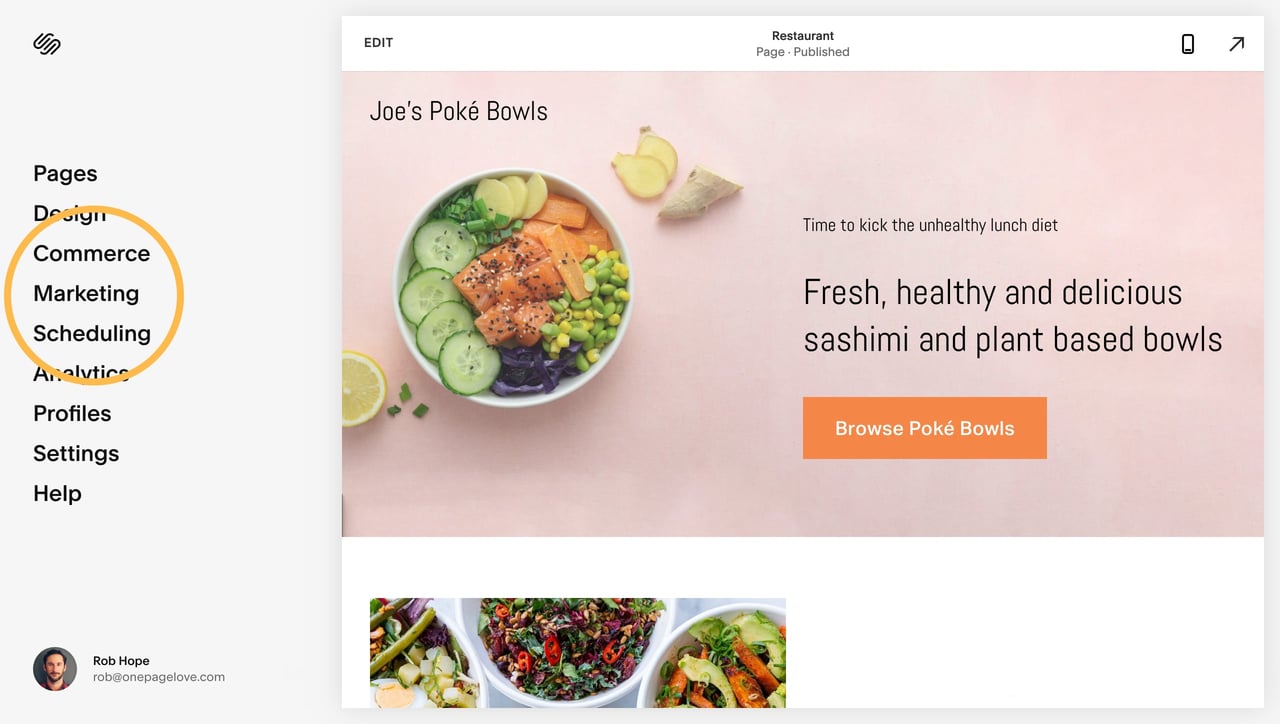
Step Two – Choose an Email design: Choose a template by clicking Create in the left panel. Note all templates are customizable and have the same features. You can also choose Start Blank to build a campaign from scratch.
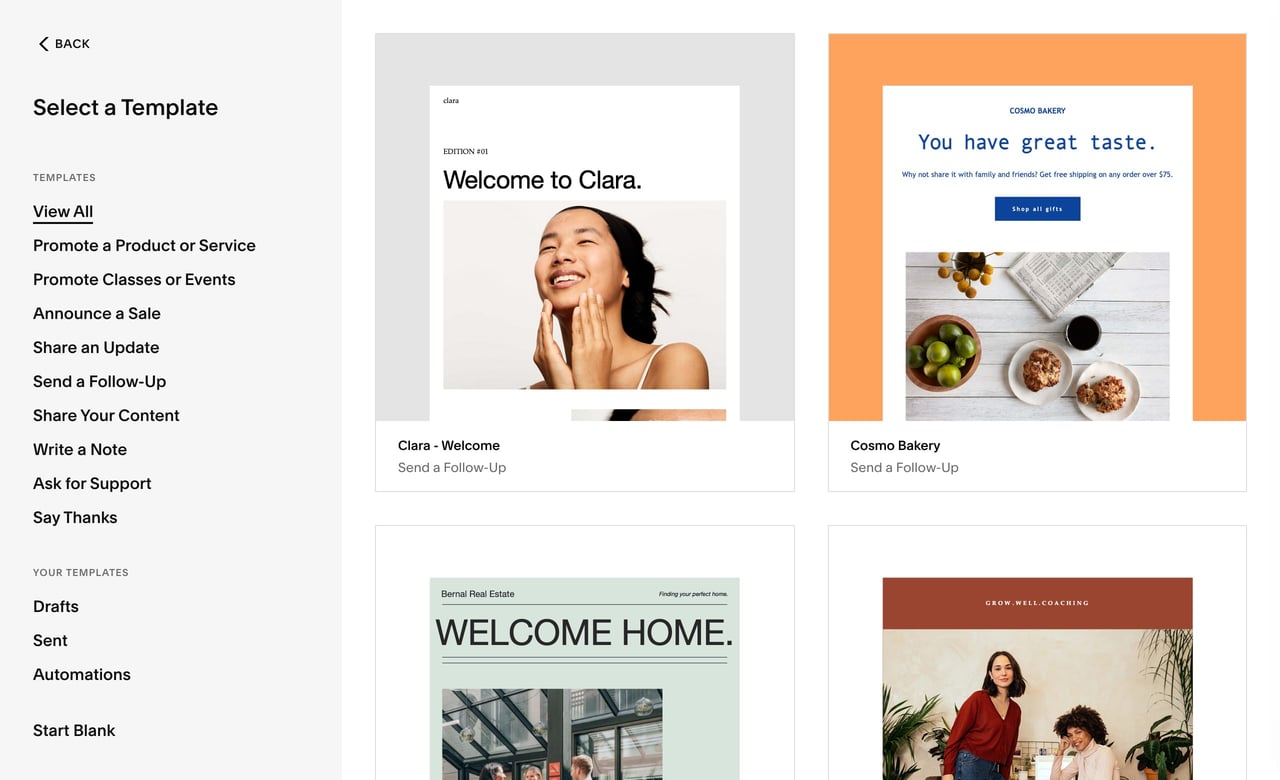
Step Three – Add and style your content: Easily transform your template to match the branding from your website with the click of a button. The Apply Site Styles button pulls your site colors and logo into your email template. Your site colors are available in the color palette and you can further edit your email design with your brand colors.
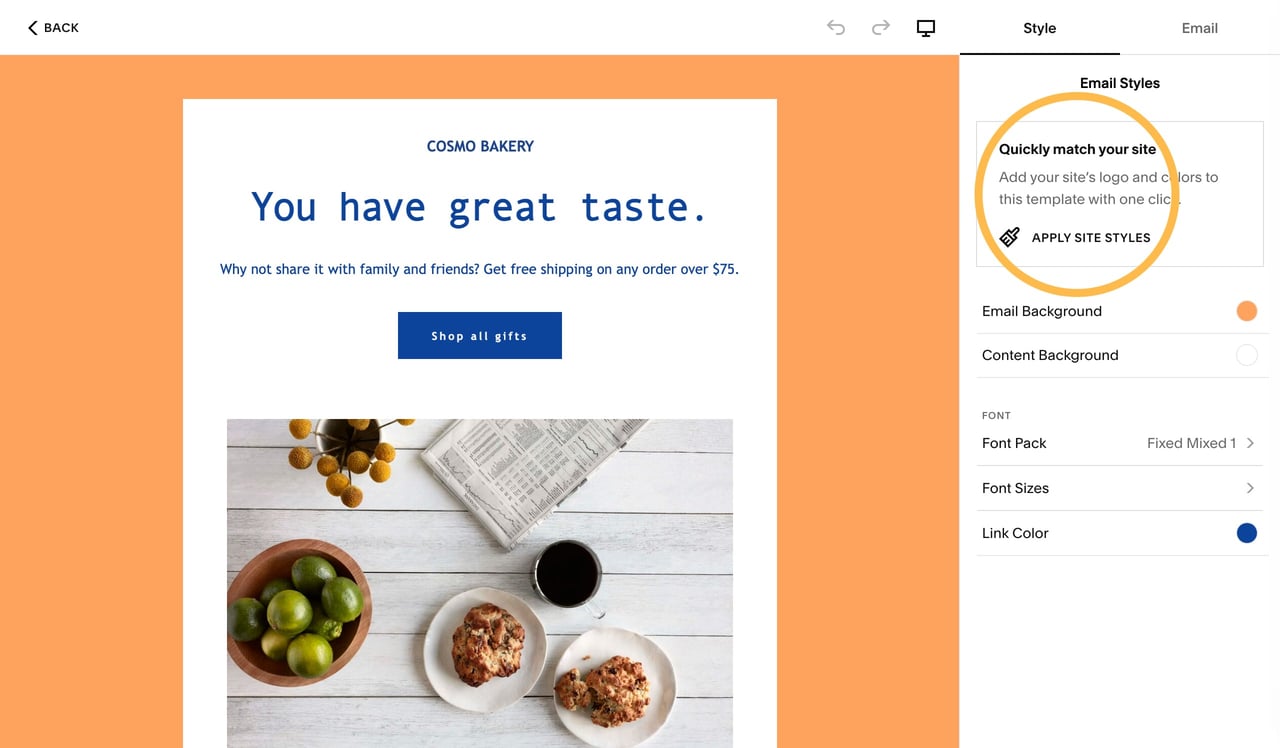
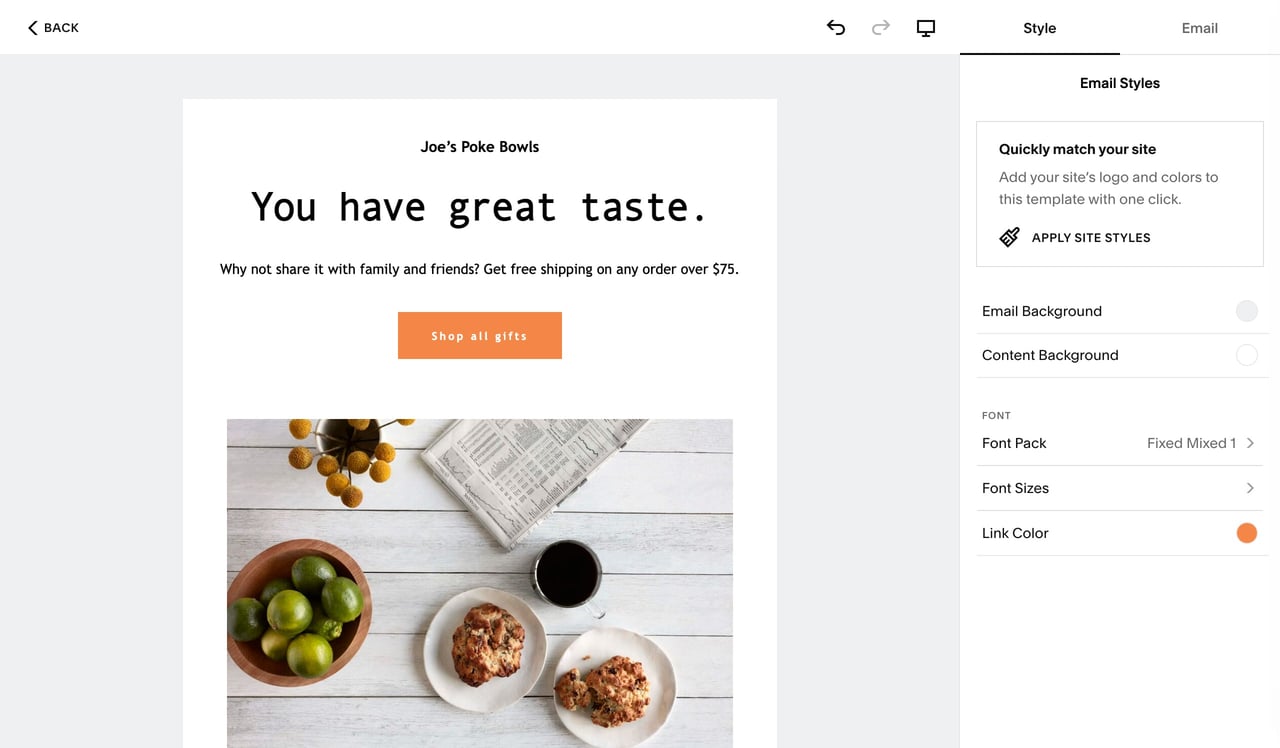
… and magic 💫 Note how the call-to-action button, email background, and font colors now match the homepage displayed earlier, and the logo has been updated:
When you hover over the email preview the blue boxes will indicate the different sections in your email. When you select a section, it’s style options appear to the right where you can edit accordingly. Here is a quick video of how easy the email content inline editing is:
Want to add an element not featured in your chosen email template? Click the blue plus icon to add new sections ranging from text, images, buttons, blog posts, or products:
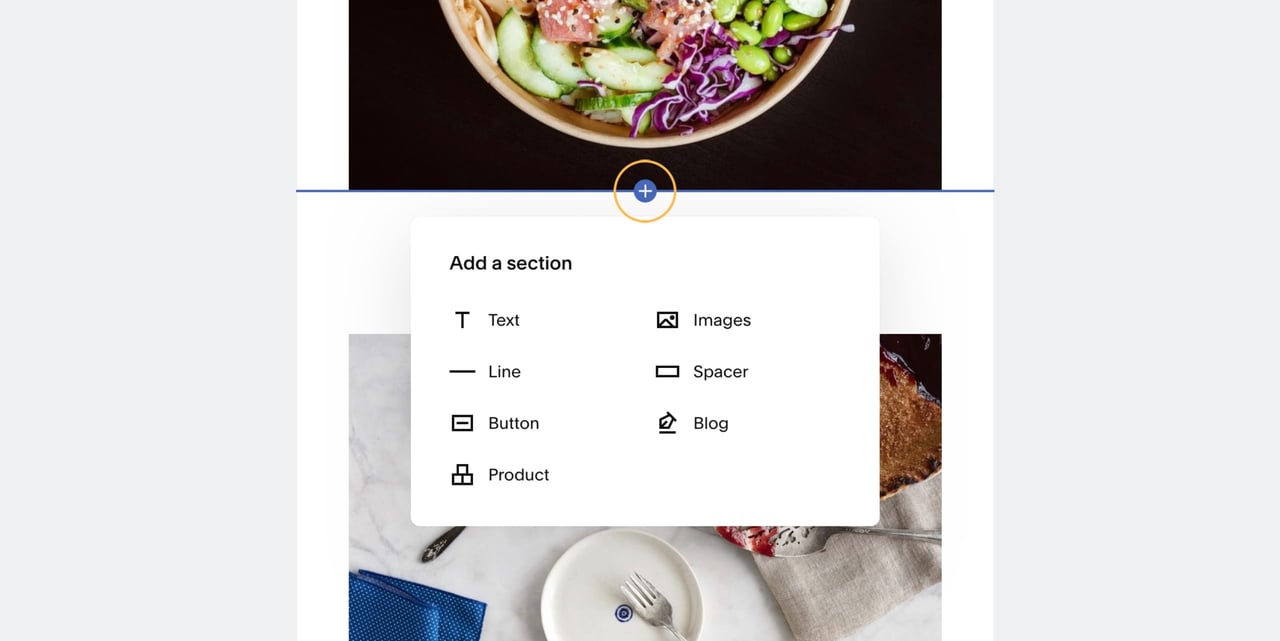
To move a section up or down, use the arrow icons on the right of the section. If you are stuck with any particular section type, refer to this comprehensive tutorial on Email sections.
Step Four – Send a Test Email: Once you are happy with your design and content, it’s time to send a test email to ensure it looks perfect before sending it to your recipients. Consider targeting your email by segmenting your subscriber audience with Profiles. Head to the Email tab in the top-right corner:
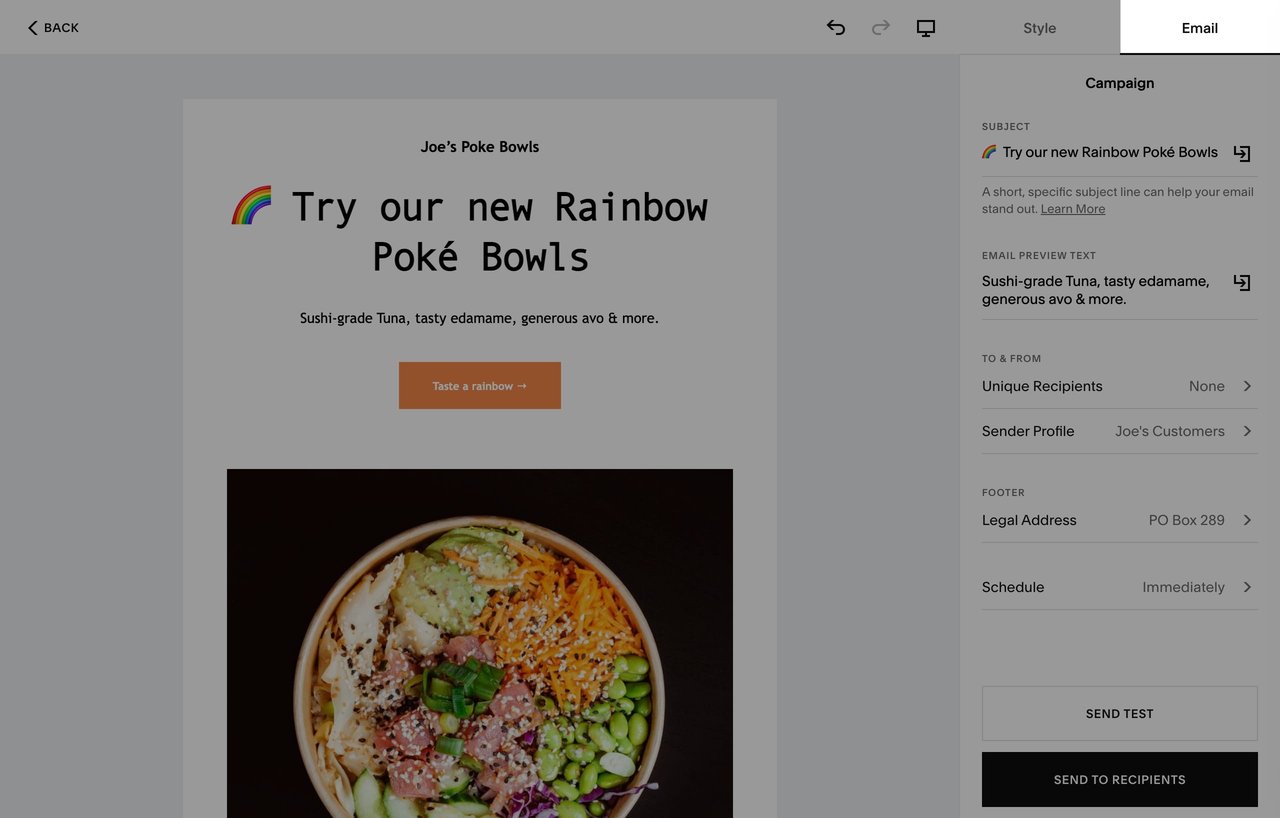
Now complete the information section in the panel:
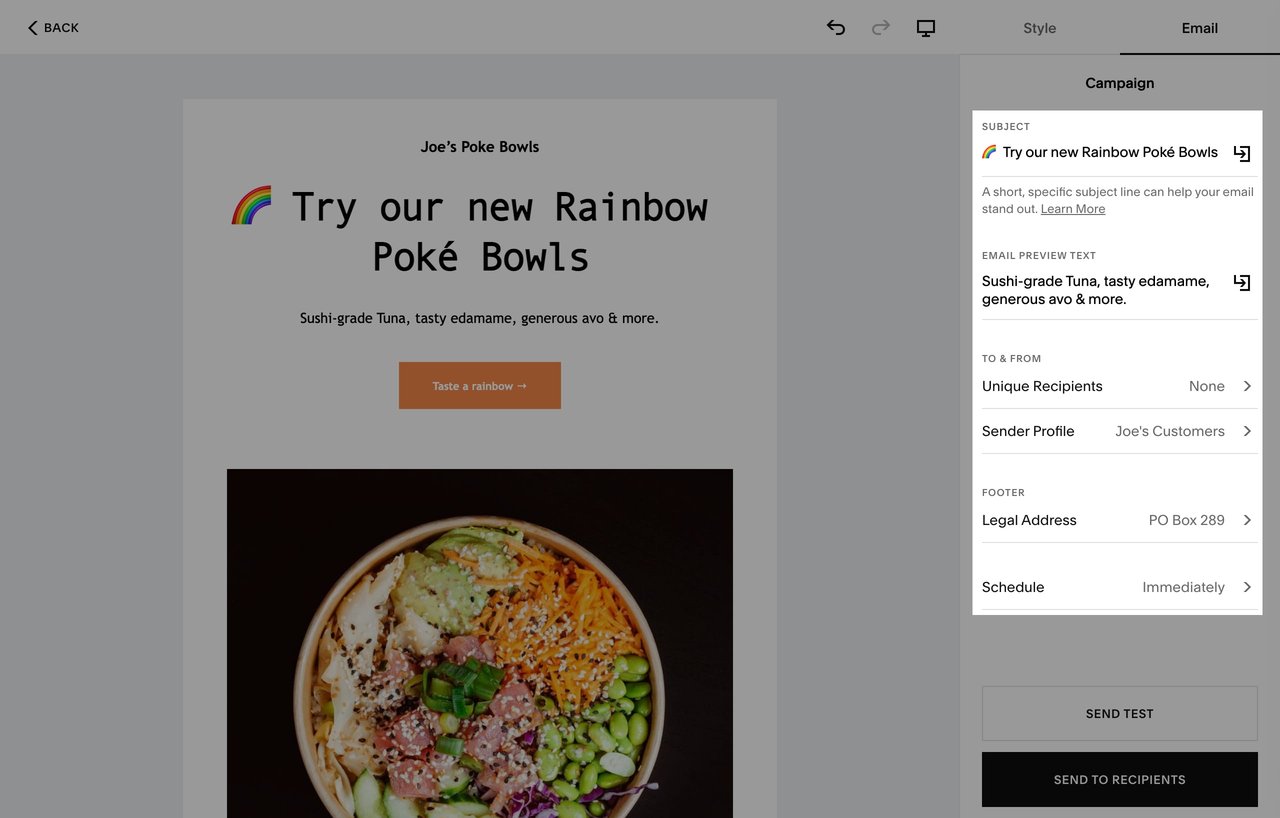
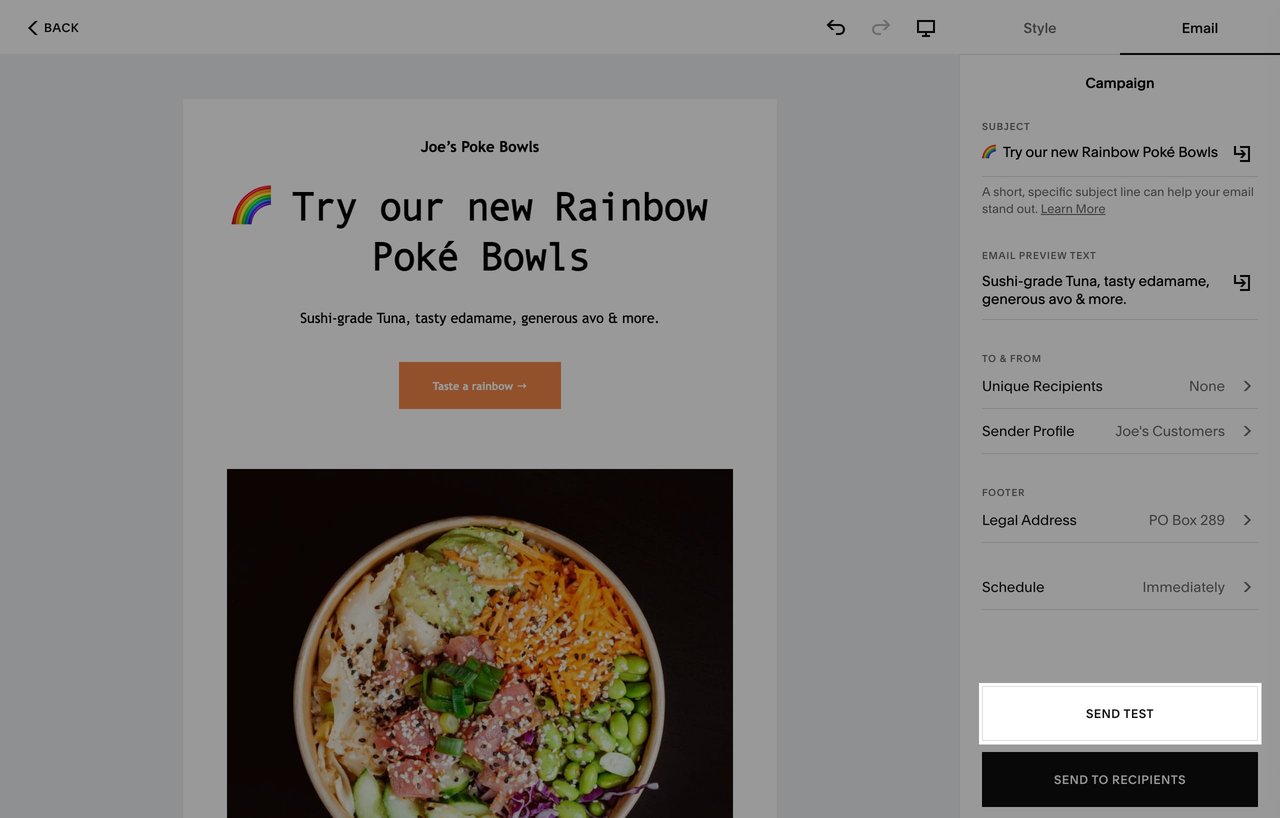
Finally click the Send Test button bottom-right to send a test email to yourself:
Time to check your inbox:
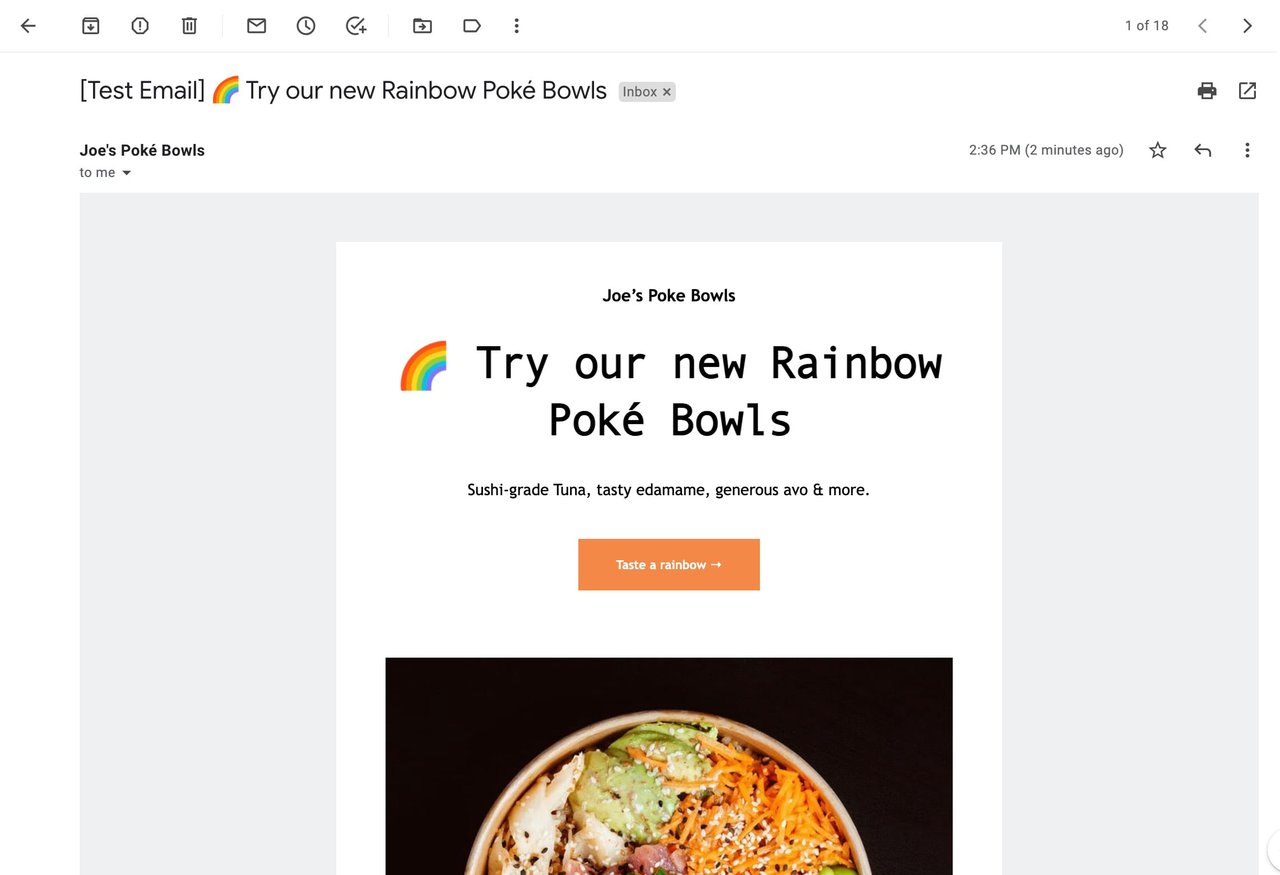
Perfection! 👌
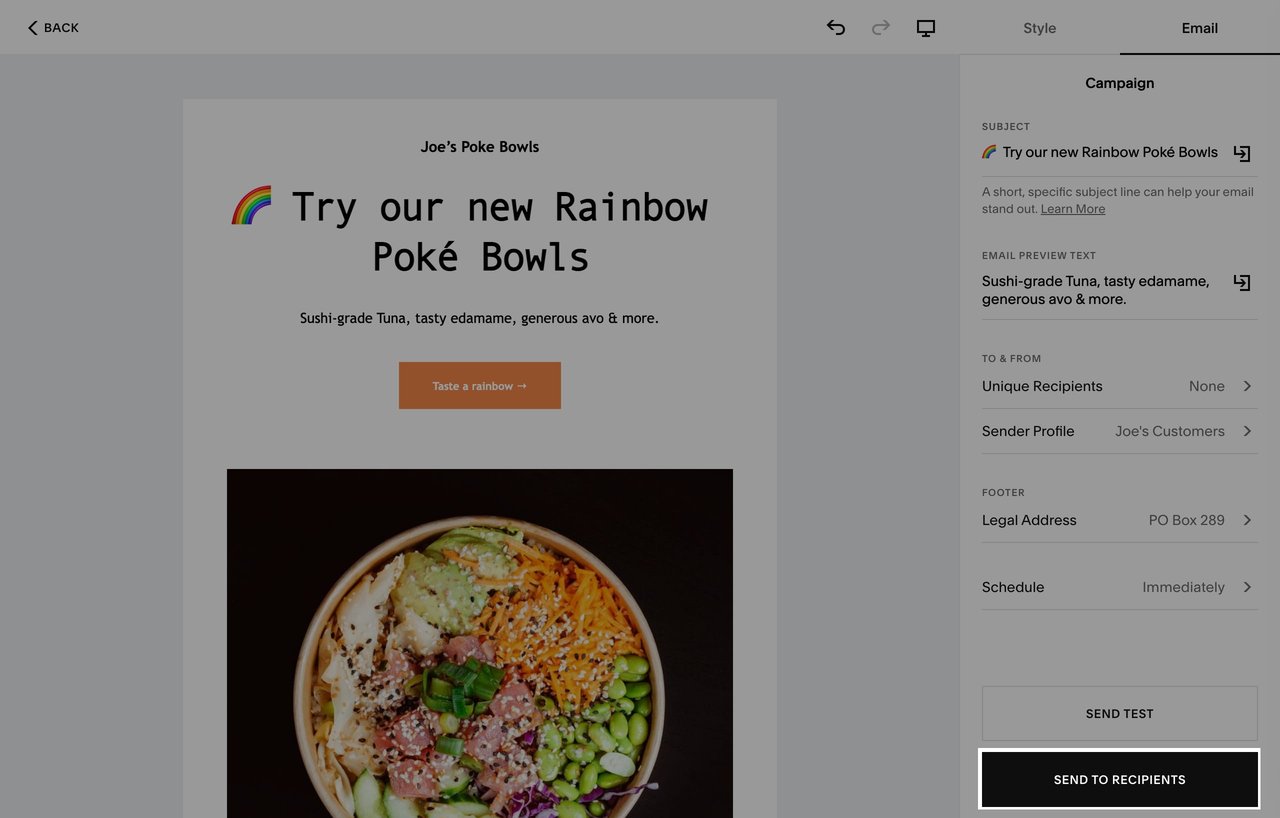
Step Five – Send your Email Campaign: In the same Email tab, click Send to Recipients button bottom-right to officially send the campaign. What a breeze!
FAQ: What other features do Squarespace Email Marketing Tools have?
- Import product listings or blog articles straight into emails
- Responsive layouts so emails look great on desktop or mobile
- Compose and edit emails from your mobile if needed
- Import email addresses using CSV files
- Comprehensive click tracking and reporting
FAQ: What are the benefits of using Squarespace?
Squarespace is a leading online website builder. What sets them apart is their superior level of design and award-winning customer support team available 24/7. Other main benefits are:
- No Website Hosting Needed - their platform is fast and secure.
- Online Content Management - all edits are done within your browser, no software needed.
- Easily Drag and Drop Images - unlimited galleries with unlimited bandwidth.
- Free Domain Name - when registering for your first website, if you pay annually (renews at standard rate).
- Beautifully Responsive - all templates work for all devices, so you only have to design your website once. Test and preview how your website will appear on a range of screen sizes.
- Blog Sections - can easily be added for content marketing and to share your journey.
- Commerce Solutions - are an upgrade away if you want to start selling products.
- Email Marketing - gather email addresses, send marketing emails and analyze the reader email activity.
- Member Areas - create private website sections only accessible to signed-up or paying members.
- Scheduling - add an online scheduler to your site to diversify your revenue with professional services or classes.
That’s a wrap! Don’t forget your 10% Off coupon*: OPL10
That’s a wrap! Don’t forget your 10% Off coupon: OPL10
I hope you enjoyed this tutorial on how to send your next campaign using Squarespace Email Marketing Tools. Props to Squarespace for creating a platform where we can create beautiful email campaigns, easily. In case you missed it I rounded up the Top 10 Squarespace templates to get started in 2022.
* The OPL10 coupon offer only applies to first payment of subscription on Squarespace, does not apply to future recurring payments or monthly plans, and may not be combined with any other offer codes or discounts.
Much love,
Rob
Twitter: @robhope
Email: [email protected]