With the increasing noise added online by social media each day, a mailing list is still a smart marketing channel to utilize in 2019.
To help improve your newsletter sign up conversions, it is recommended to have a great looking website Landing Page to send users to subscribe.
Why not just add the sign up block to your website home page? You can, but the sign up form often gets lost below your core product or service pitch.
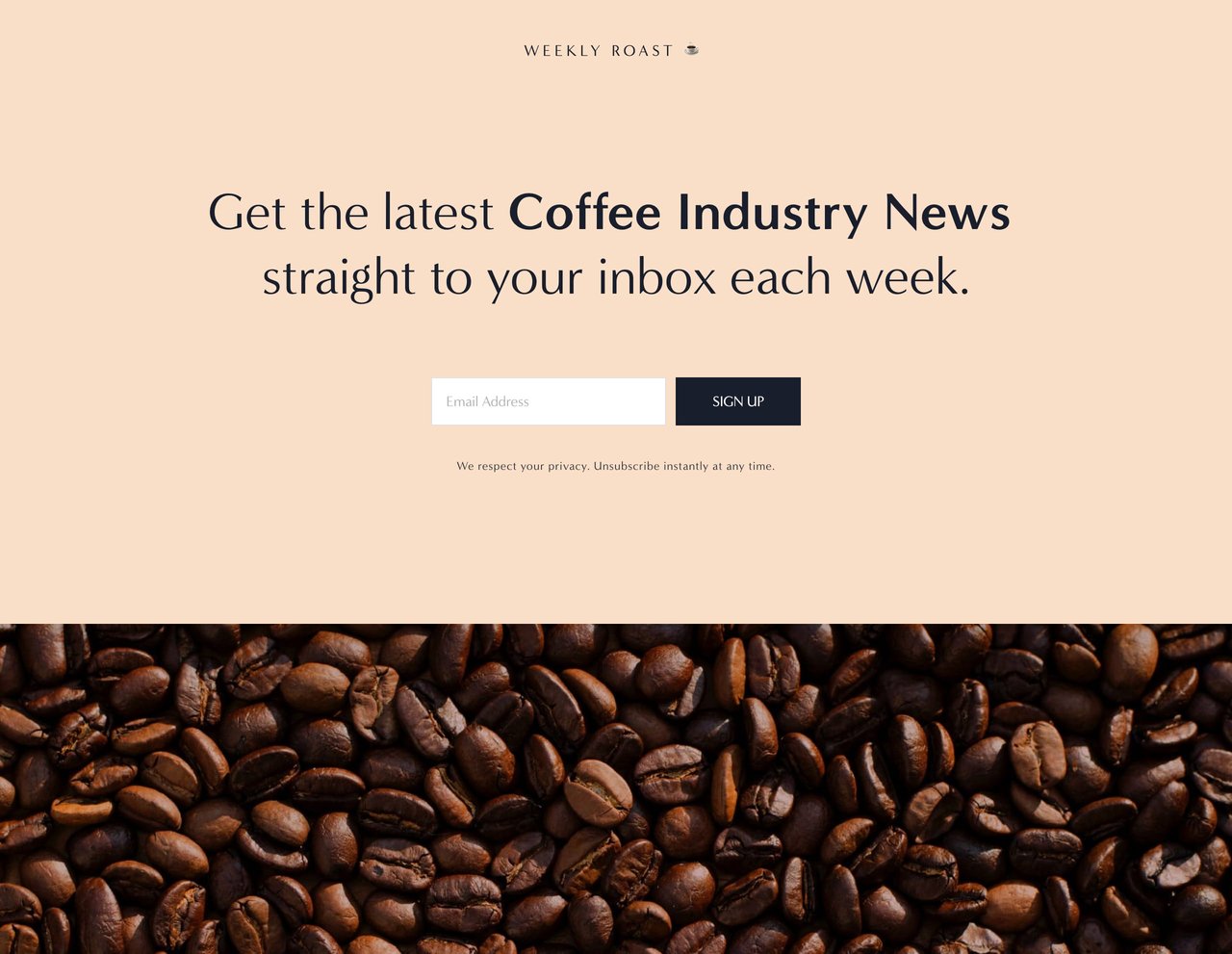
In this tutorial I show you exactly how to create a dedicated website landing page for your newsletter. For better context, I’m creating a fictitious Coffee Industry newsletter called Weekly Roast:
One Page Love Exclusive Coupon
Yay! Squarespace has been kind enough to give One Page Love readers the exclusive coupon OPL10 for 10% Off* your first website or domain purchase. (There is a free 14-day trial with no credit card needed, so you can try risk-free.)
Please note: this article is based on the Squarespace 7.0 platform.
The new Squarespace 7.1 platform features an improved user interface, so the screenshots might differ but the majority of the content is still relevant. Squarespace 7.1 offers a much more flexible way to build websites, regardless of which template you start with. Squarespace 7.1 templates also support all features and style options including an unlimited number of page sections.
How to create a newsletter landing page with sign up form
Step 1 – Start with any Squarespace template: Sign up at Squarespace (using the coupon OPL10) and choose the template closest to your needs. In this demo I’ve used the Sofia template because I love it’s minimal and spacious aesthetic.
Step 2 – Create your new Mailing List: Squarespace Menu > Marketing > Email Campaigns > Mailing Lists. Then click the Create a new Mailing List link. You will be prompted with a pop-up like this, name your list anything you want and hit save. I called mine "Weekly Roast":
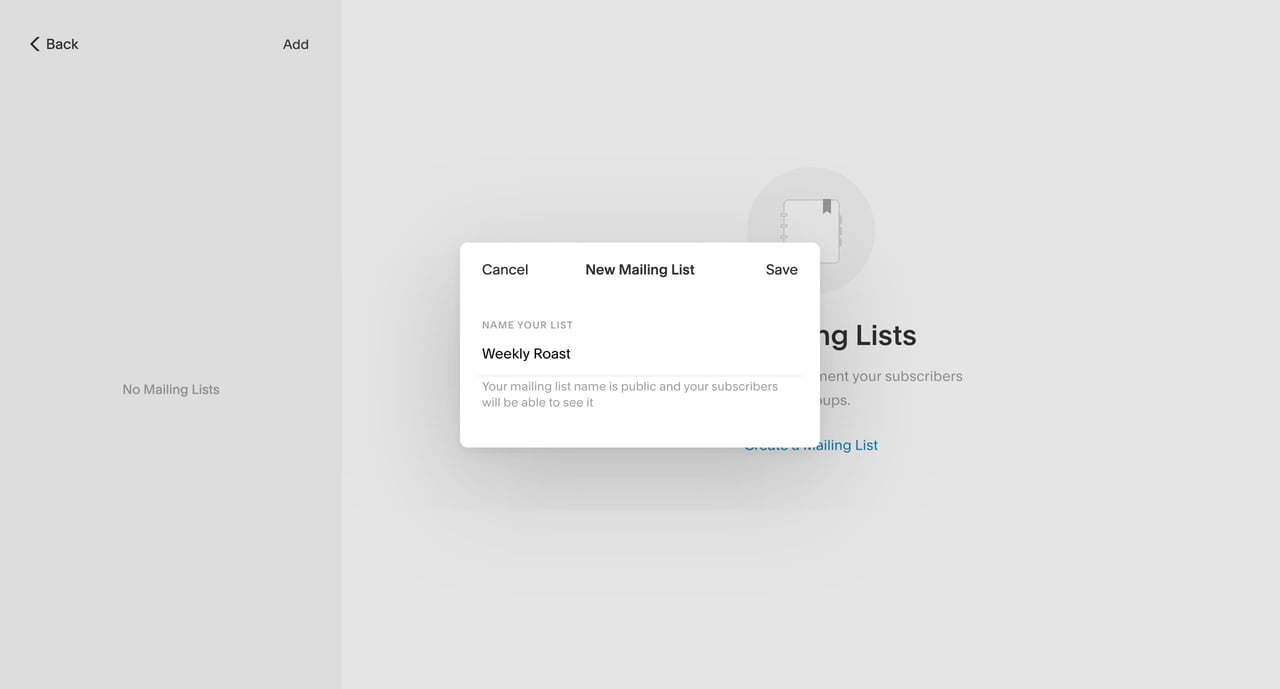
You now have a very convenient option to import a "CSV file" of customer emails if you have an existing mailing list. CSV files are created when exporting your mailing lists from any popular email providers.
Step 3 – Create a dedicated new page for your newsletter: In the main navigation head to Pages > Primary Navigation > the Plus icon and select any style page you want. I normally start blank then add Content Blocks accordingly.
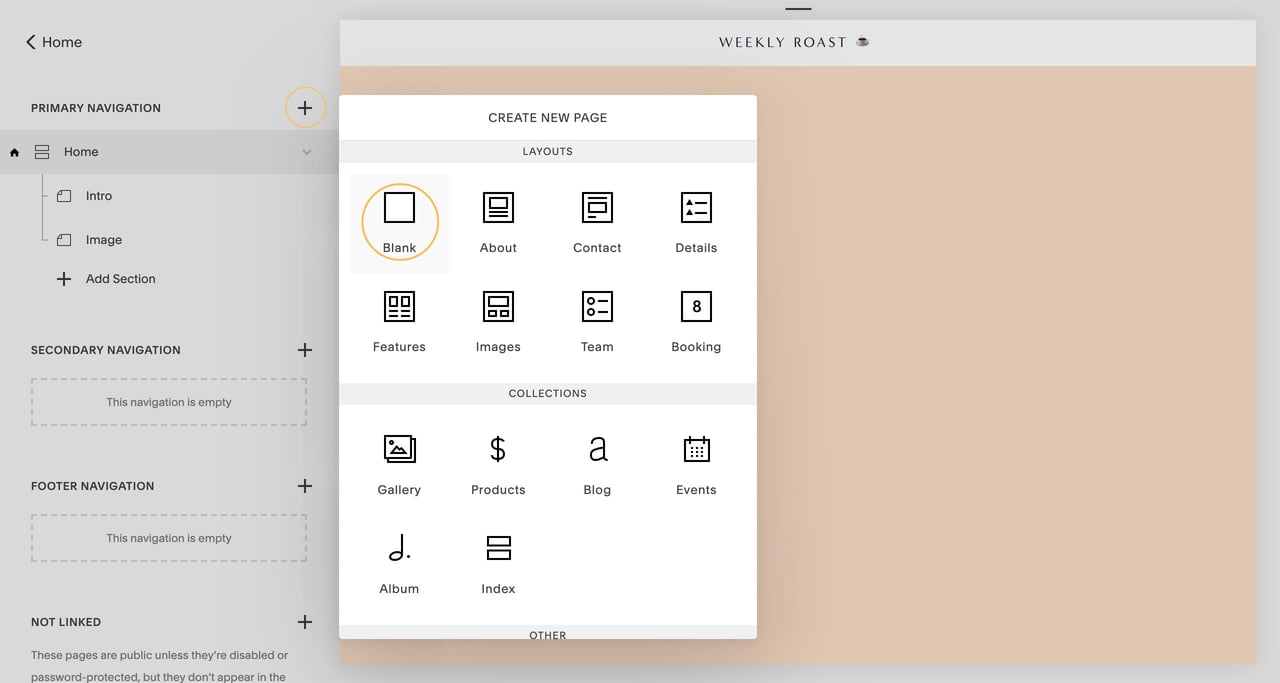
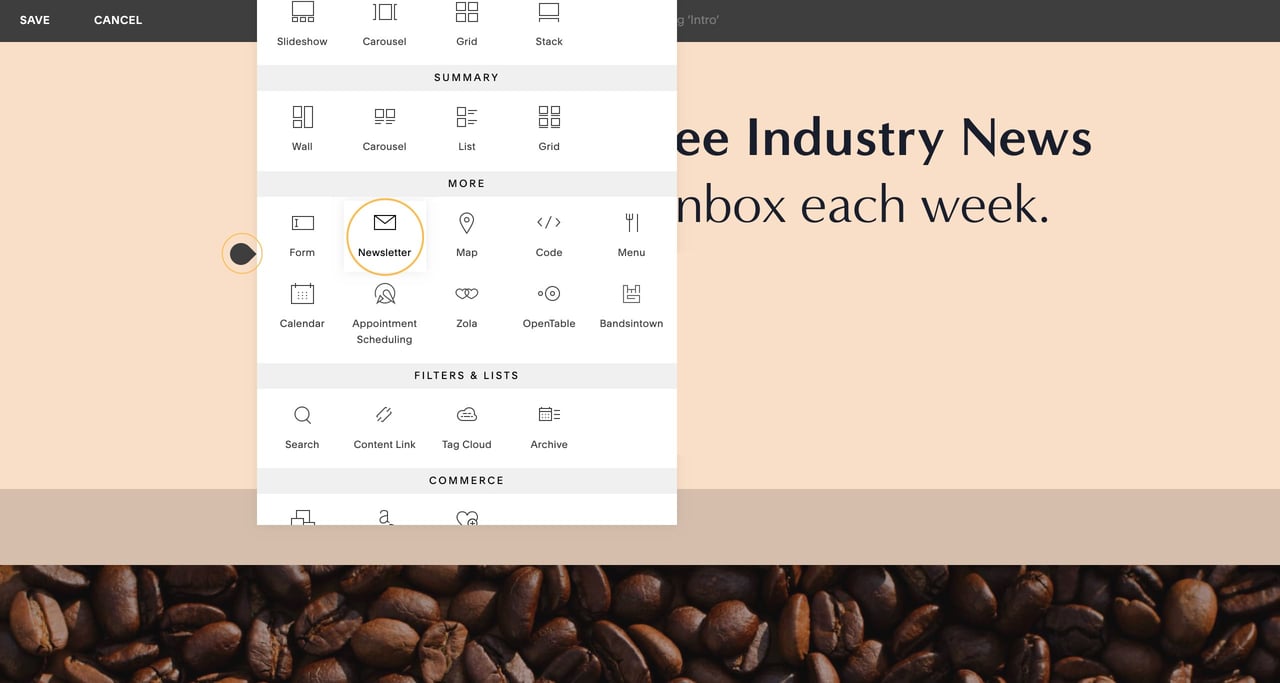
Step 4 – Add Content Blocks including your Newsletter Content Block: Hover over the website areas and click Edit when promoted. Now fill in your content accordingly and where you want your newsletter sign up form: hover over the area until the tear drop icon appears, insert the Newsletter Content Block like this:
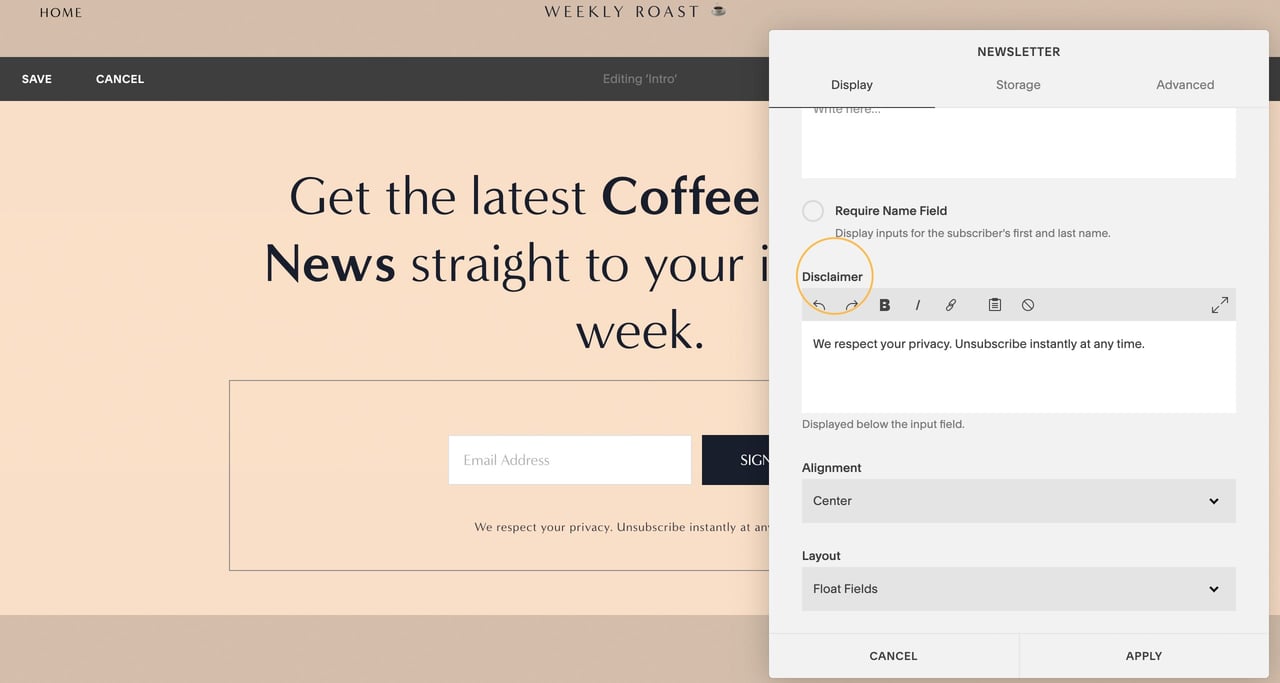
Step 5 – Edit the Newsletter Content Block settings: The default newsletter placeholder text is great but I added a little bit more in the Disclaimer field regarding the unsubscribe policy. This helps build trust and should improve sign up conversions:
Step 6 – Connect the Newsletter Content Block with your list: Head over to the Storage tab and simply click the prompted campaign block to connect to the list we created in Step Two.
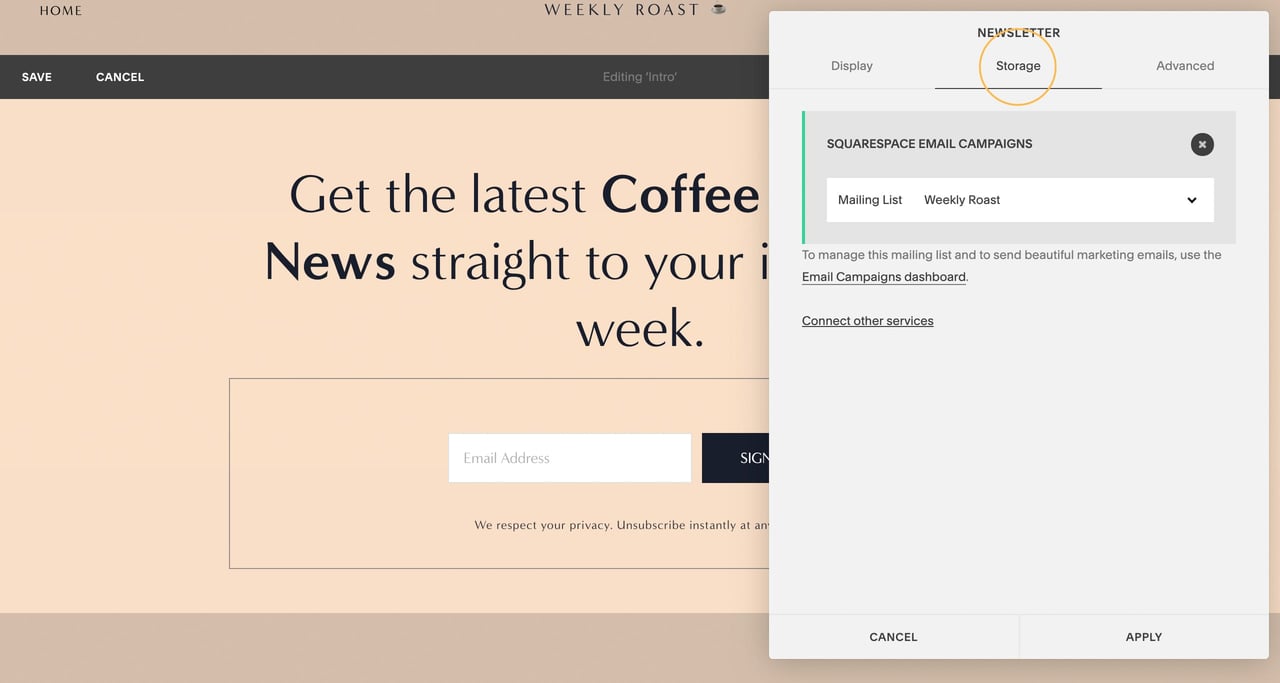
Now hit Apply at the bottom-right of the Newsletter settings and your Landing Page can actively collect emails into your new mailing list:
FAQ: What else does the Squarespace Email Marketing Tool offer?
Noteworthy highlights include:
- Comprehensive click tracking and reporting
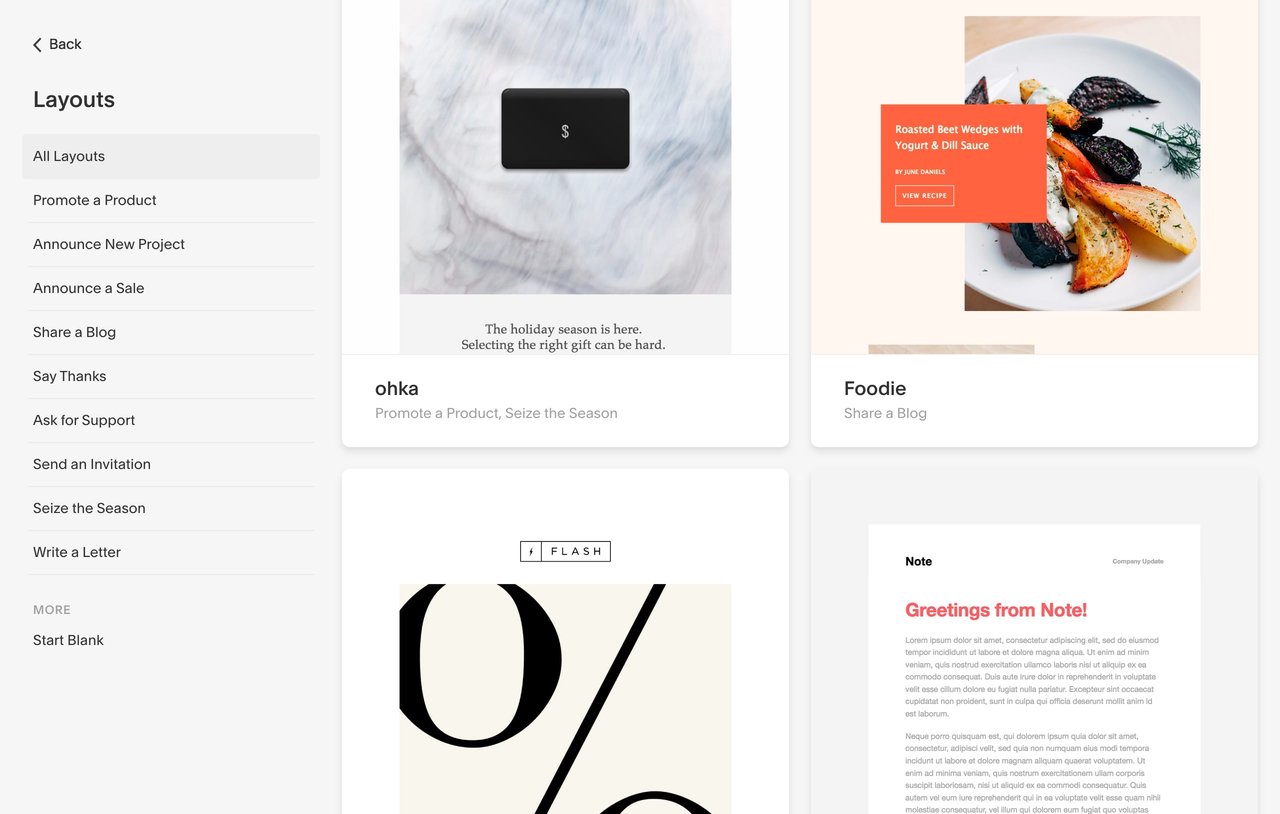
- A range of customizable templates (preview below) to start designing emails
- Responsive layouts so emails look great on desktop or mobile
- Import content from your website or blog straight into emails
- Compose and edit emails from your mobile if needed
- Import email addresses using CSV files (as mentioned above)
My favorite feature is how the click tracking is part of a bigger analytics platform. We can track a click from an email button all the way to the purchase page, meaning we can see how much our Email Marketing Campaigns are converting into sales.
FAQ: What are the benefits of using Squarespace?
Squarespace is a leading online website builder. What sets them apart is their superior level of design and award-winning customer support team available 24/7. Other main benefits are:
- No Website Hosting Needed - their platform is fast and secure.
- Online Content Management - all edits are done within your browser, no software needed.
- Easily Drag and Drop Images - unlimited galleries with unlimited bandwidth.
- Free Domain Name - when registering for your first website, if you pay annually (renews at standard rate).
- Beautifully Responsive - all templates work for all devices, so you only have to design your website once. Test and preview how your website will appear on a range of screen sizes.
- Blog Sections - can easily be added for content marketing and to share your journey.
- Commerce Solutions - are an upgrade away if you want to start selling products.
- Email Marketing - gather email addresses, send marketing emails and analyze the reader email activity.
- Member Areas - create private website sections only accessible to signed-up or paying members.
- Scheduling - add an online scheduler to your site to diversify your revenue with professional services or classes.
That’s a wrap! Don’t forget your 10% Off coupon*: OPL10
That’s a wrap! Don’t forget your 10% Off coupon: OPL10
I hope you enjoyed this tutorial on how to create a newsletter landing page using Squarespace and start building your list. Props to Squarespace for creating a platform where we can create beautiful Landing Pages, easily. If you missed it I also wrote a tutorial on how to how to start a subscription product or service using Squarespace.
* The OPL10 coupon offer only applies to first payment of subscription on Squarespace, does not apply to future recurring payments or monthly plans, and may not be combined with any other offer codes or discounts.
Much love,
Rob
Twitter: @robhope
Email: [email protected]